We often work with Solr on our projects, and we frequently encounter bugs—both minor and major—as well as development requests.
Solr is a rabbit hole where you can go very deep, but even a few basic concepts are enough to answer these kinds of questions in a relatively short amount of time:
“The word ‘xyz’ appears in field x of the content, but when I type it into the search bar, I don’t get any results. Why?”
Integral Vision

Below, I present two cases in detail—the lessons learned from each are different, and they clearly illustrate how the same symptom can be attributed to different causes.
First case.
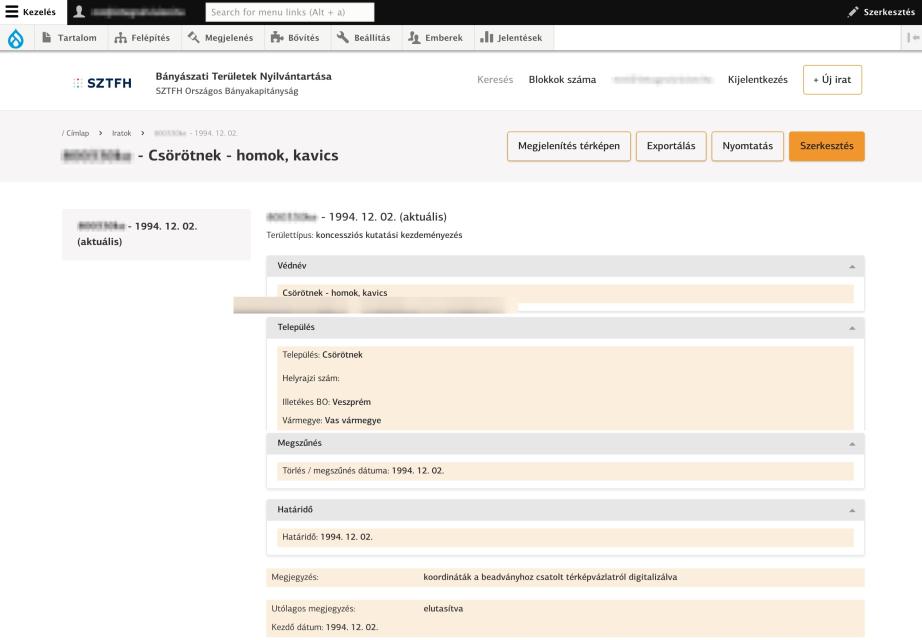
“When searching in the Comment field, not all results are listed. I’ve noticed that entries where not only the Comment field but also the Follow-up Comment field is filled out do not appear in the search results. For example, if I type <
There are two ways to approach this: from the code or from Solr. Let’s look at the latter.
The first question I ask myself in this situation is: does my Solr index even contain a document with the title that the customer wants to see as a search result?
By default, Solr is accessible at the URL http://localhost:8983/solr/. When I open the interface, I click on the “Query” menu item on the left-hand side.
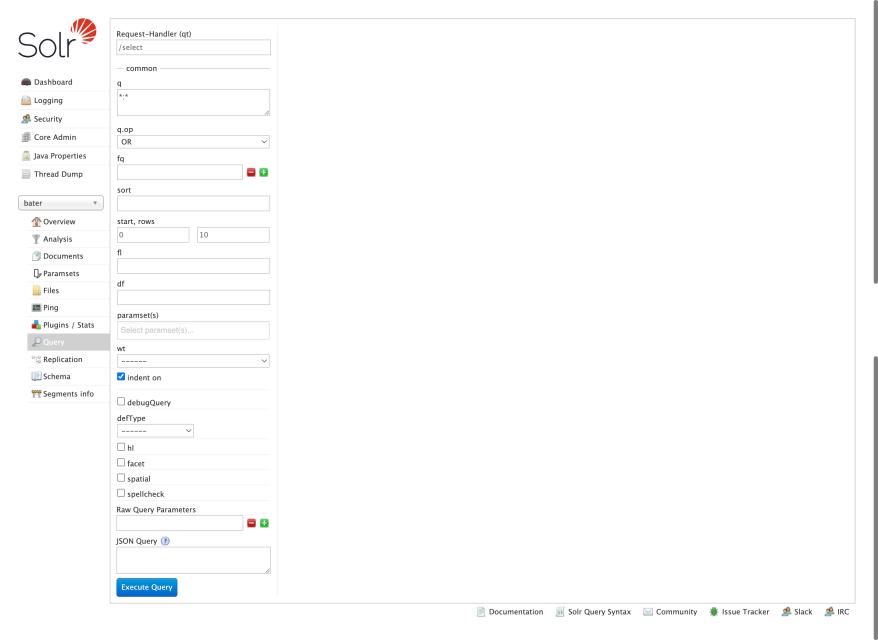
We know from the client which content is missing from our search results; we know its title: “Csörötnek - sand, pebbles”
If I don’t know off the top of my head what field Solr uses to store the title, then for simplicity’s sake I’ll look at a random result and check the name of the field containing the title. To do this, I simply scroll to the bottom of the form and click the “Execute Query” button.
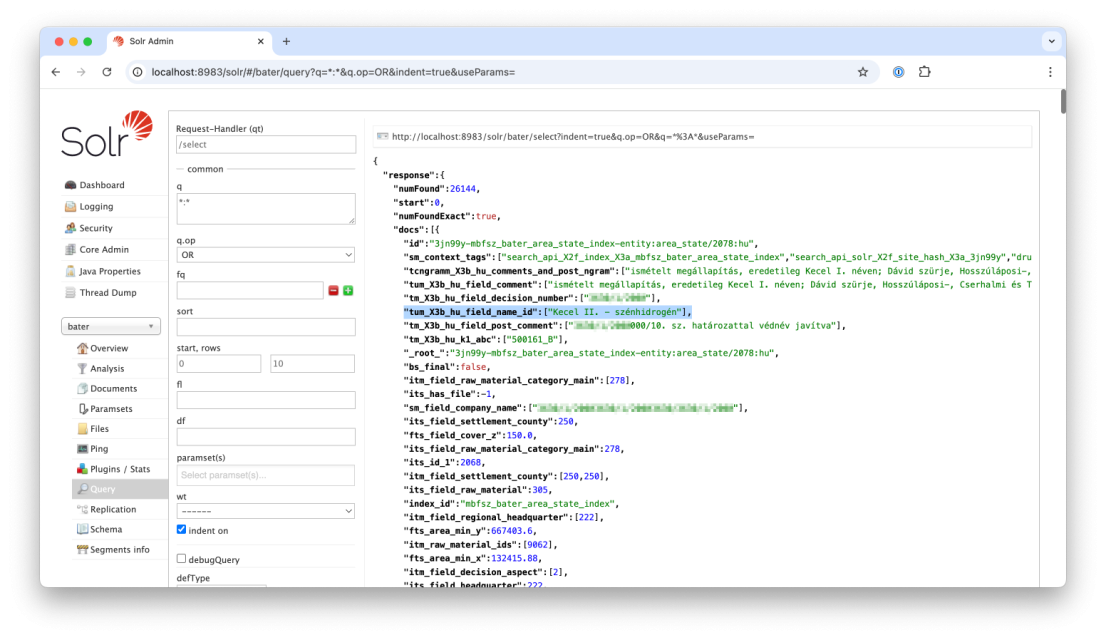
The `numFound` parameter indicates the number of results. Since I haven't filtered the list by any criteria, this now shows the total number of documents in my index.
I’ll take a closer look at the first document and find the field containing the title: tum_X3b_hu_field_name_id
I can also see the comment field: tm_X3b_hu_comments_and_post_ngram
Now I’ll search for the character sequence the client mentioned: tm_X3b_hu_comments_and_post_ngram:”digitized”
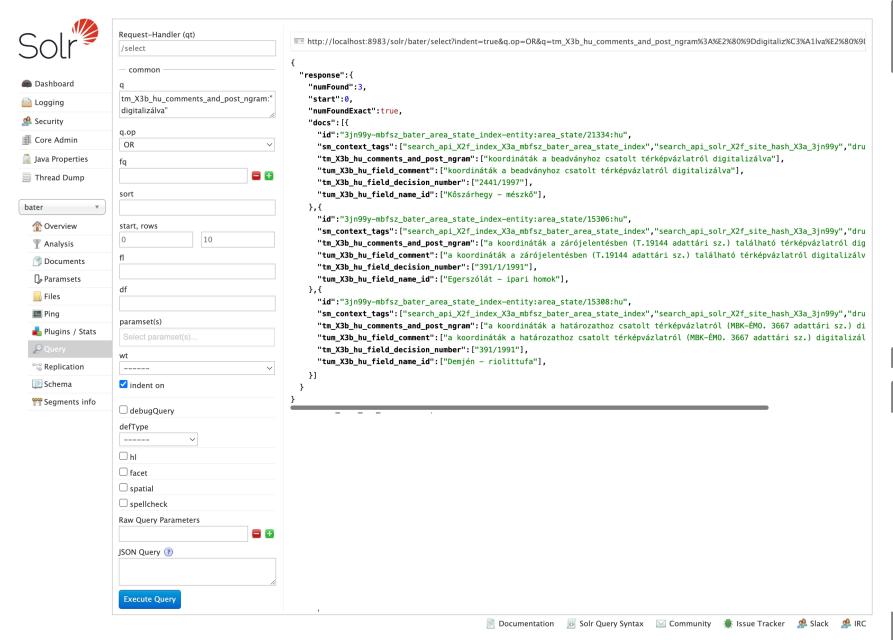
It really does only return 3 results, and Csöröt isn't among them. So let's see if the missing content appears in Solr at all!
Now I’m searching for the title; to do this, I’ll change the *:* in the ‘q’ field to this:
tum_X3b_hu_field_name_id:"Csörötnek - sand, gravel"
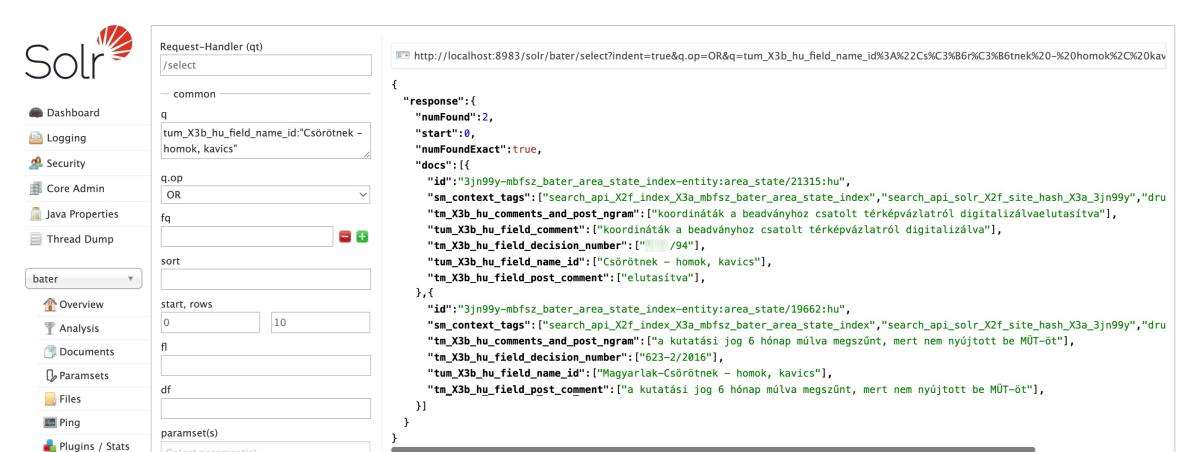
I found a result! This tells us that Solr has indexed this content, which is half the battle. Now I’ll check the comment field to see how Solr parsed it:
"tm_X3b_hu_comments_and_post_ngram":["coordinates digitized from the sketch map attached to the submission—rejected"],
The problem is obvious: the two fields were concatenated during indexing without a space between them. If I search for this: “digitized and rejected”, and I get Csörötnek as a search result:
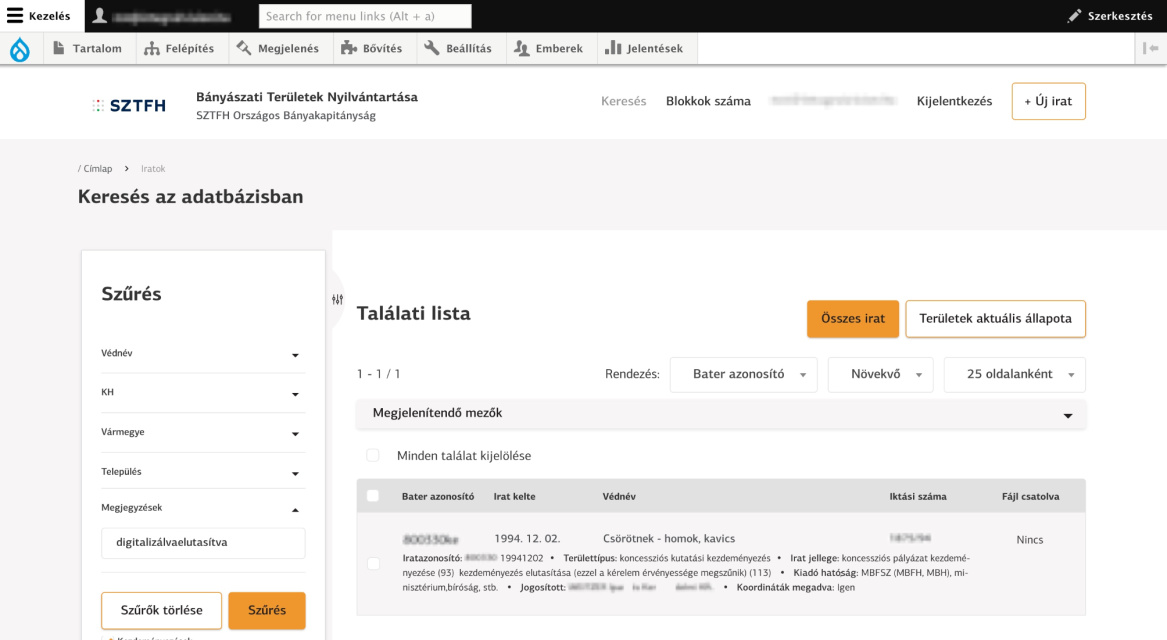
So all I have to do is find the part of the code responsible for concatenating the comment fields:
$comment = $change->get('field_comment')->getString();
$comment_post = $change->get('field_post_comment')->getString();
return $comment . $comment_post;
I’ll add the missing space, reindex the content, and voilà, Csöröt appears in the search results.
Second case.
“If I search for ‘Hatvan’ in the title and get no results, even though there’s plenty of content with that title: Hatvan - hydrocarbon”
Let’s go through the steps above again: Is there any content with the title “Hatvan - hydrocarbon” in my Solr index?
Now that I’m familiar with the title field, I’ll replace *:* in the ‘q’ field with this:
tum_X3b_hu_field_name_id:"Hatvan - hydrocarbon"
I found some results. Quite a few, actually—5,023 of them. However, if I enter what the customer entered:
tum_X3b_hu_field_name_id:"Hatvan”
then there are no results. A mystery.
So far, the Query interface hasn’t brought us any closer to a solution—the content is there in the index, yet it remains invisible. This is where the Analysis menu item comes in handy; it shows how Solr processes the indexed text and the search query, and whether there is any overlap between the two at all.
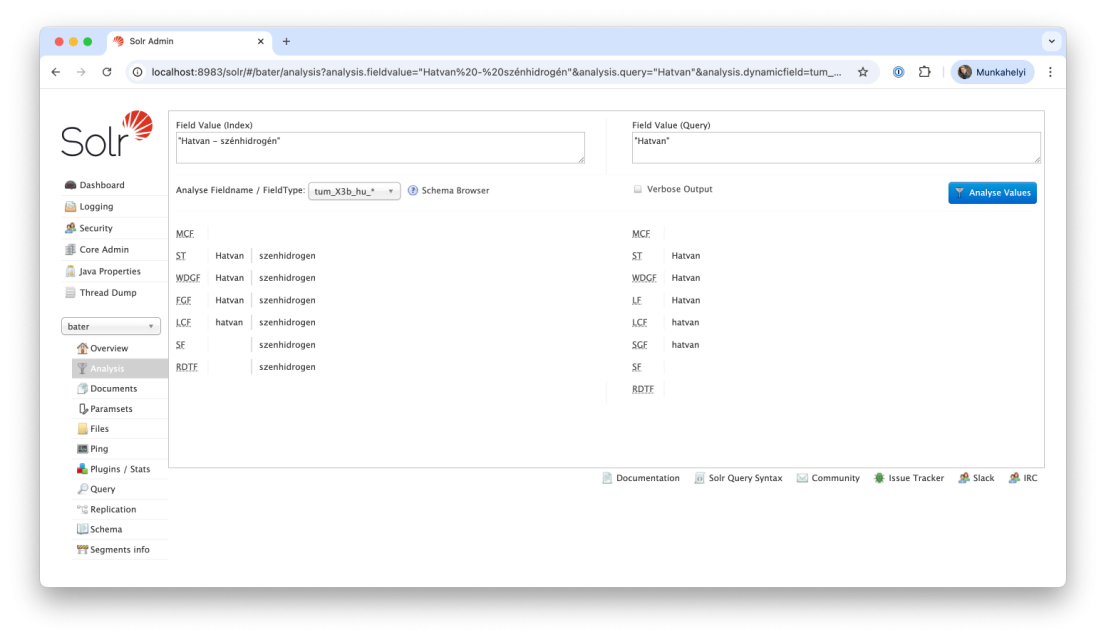
We see two columns: on the left, I can enter the data contained in my index, and on the right, what I’m searching for, and Solr shows me how it processes these step by step. It explains what’s happening in the background at each step and why there is or isn’t a match.
What’s in my index? "Hatvan - hydrocarbon" What is my field type? I look up the corresponding prefix: tum_X3b_hu_* And what did I search for in the search bar? “Hatvan” Let’s see!
On the left side, I can see how Solr strips down the value in my index depending on the field type.
We see lots and lots of unfamiliar abbreviations: MCF, ST, WDGF, etc. These are processes—so-called filters—that Solr applies during text indexing and analysis.
When I can’t remember what a particular filter does, I search for my field type in the Solr conf directory: tum_X3b_hu_
In the schema_extra_fields.yml file, I find this line:
<dynamicField name="tum_X3b_hu_*" type="text_unstemmed_hu" stored="true" indexed="true"
multiValued="true" termVectors="true" omitNorms="false" />
This tells me the type of my field: text_unstemmed_hu
When I search for this in the schema_extra_types.xml file, I find explanations for the unusual abbreviations:
<fieldType name="text_unstemmed_hu" class="solr.TextField" positionIncrementGap="100" storeOffsetsWithPositions="true">
<analyzer type="index">
<charFilter class="solr.MappingCharFilterFactory" mapping="accents_hu.txt"/>
<tokenizer class="solr.StandardTokenizerFactory"/>
<filter class="solr.WordDelimiterGraphFilterFactory" catenateNumbers="0" generateNumberParts="0"
protected="protwords_hu.txt" splitOnCaseChange="1" generateWordParts="1" preserveOriginal="1" catenateAll="0"
catenateWords="0"/>
<filter class="solr.FlattenGraphFilterFactory"/>
<filter class="solr.LowerCaseFilterFactory"/>
<filter class="solr.StopFilterFactory" ignoreCase="true" words="stopwords_hu.txt"/>
<filter class="solr.RemoveDuplicatesTokenFilterFactory"/>
analyzer>
<analyzer type="query">
<charFilter class="solr.MappingCharFilterFactory" mapping="accents_hu.txt"/>
<tokenizer class="solr.StandardTokenizerFactory"/>
<filter class="solr.WordDelimiterGraphFilterFactory" catenateNumbers="0" generateNumberParts="0"
protected="protwords_hu.txt" splitOnCaseChange="0" generateWordParts="1" preserveOriginal="1" catenateAll="0"
catenateWords="0"/>
<filter class="solr.LengthFilterFactory" min="2" max="100"/>
<filter class="solr.LowerCaseFilterFactory"/>
<filter class="solr.SynonymGraphFilterFactory" ignoreCase="true" synonyms="synonyms_hu.txt" expand="true"/>
<filter class="solr.StopFilterFactory" ignoreCase="true" words="stopwords_hu.txt"/>
<filter class="solr.RemoveDuplicatesTokenFilterFactory"/>
analyzer>
fieldType>
The filters do indeed match what the analyzer shows:
MCF - MappingCharFilterFactory
ST - StandardTokenizerFactory
WDGF - WordDelimiterGraphFilterFactory
FGF - FlattenGraphFilter
LCF - LowerCaseFilterFactory
SF - StopFilterFactory
RDTF - RemoveDuplicatesTokenFilterFactory
You can also see what other configuration files Solr uses for each filter—for example, protwords_hu.txt for the WordDelimiterGraphFilter and stopwords_hu.txt for the StopFilter.
So how does Solr process our character string “Hatvan - hydrocarbon”?
The MCF is the MappingCharFilter, which first removes the accents.
ST stands for Standard Tokenizer, which splits my text into words. “Hatvan - szénhidrogén” becomes “Hatvan” and “szenhidrogen” after the second step.
The WDGF, that is, the WordDelimiterGraphFilter, further splits the words along delimiter characters (e.g., "wi-fi" → "wi", "fi”).
The FGF, that is, the FlattenGraphFilter, allows “wi-fi” to be split into “wi” and “fi” and then appear as a single entry in the index: “wifi”-. In our case, this is irrelevant.
The LCF, or LowerCaseFilter, converts words to lowercase.
SF stands for StopFilter, which removes common words that are often irrelevant to the search, such as articles, pronouns, conjunctions, etc.
And just like that, the problem is solved! After applying the StopFilter, “sixty” disappeared. As we learned from the schema_extra_types.xml file, the StopFilter works from a stopwords_hu.txt file. I can also check its current status by clicking on the Files menu item. Here I can see that the stopwords do indeed include all numeral names.
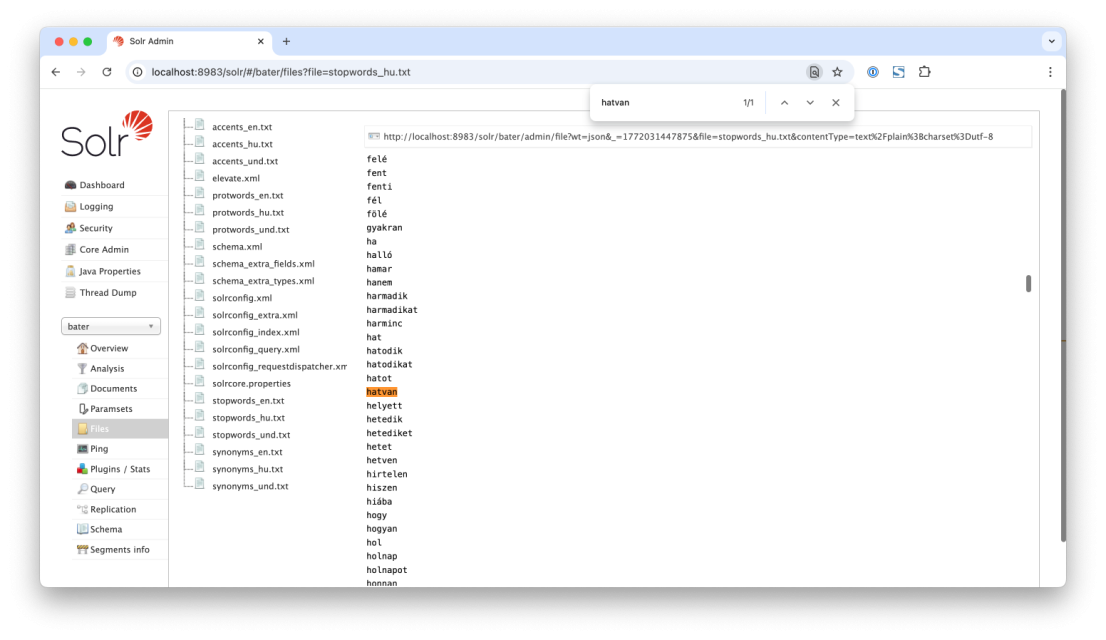
What's the solution? Remove "hatvan" from the stopwords. (You can find the location of the Solr conf folder under the Overview menu item.)
After modifying the file, we need to reload the updated configuration files, which we can do by clicking the Reload button in the Core Admin menu.
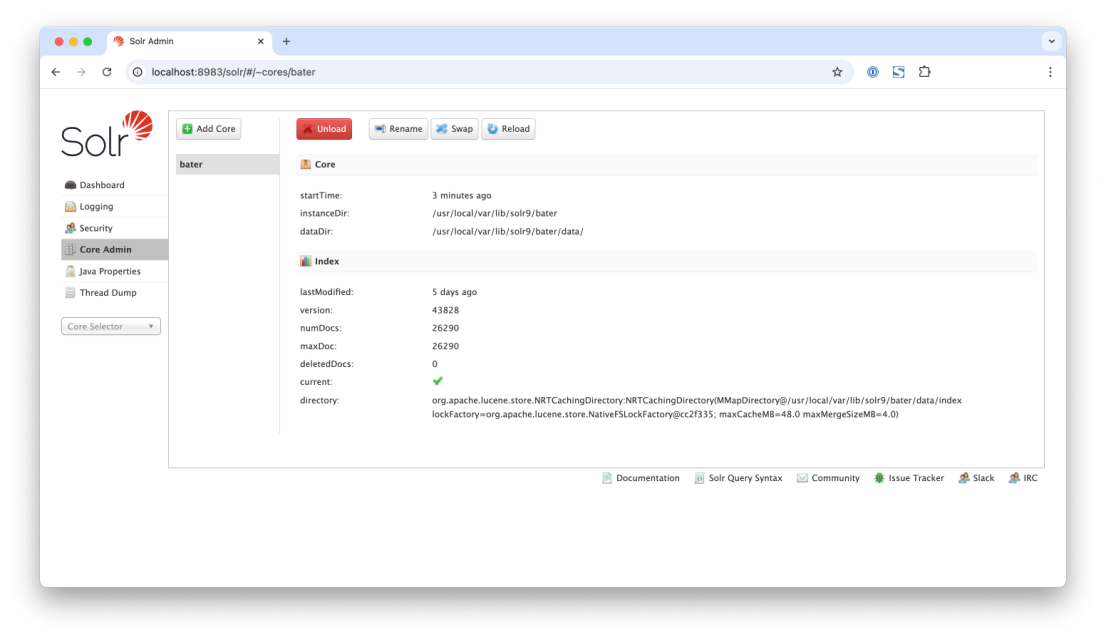
If we then run the analysis again, the highlighting immediately shows that there is now a match, and it’s also clear that SF did not remove the searched-for word. Hooray!
All that’s left to do is reindex the content, and lo and behold, Hatvan now appears for users as well.
While we’re on the subject, here’s a short list of Hungarian place names that are designated as stopwords by default because Solr considers them irrelevant for search purposes. However, if users can search for place names, it’s worth removing these from the stopwords file:
- Although
- You
- With me
- Hatvan
- Hét
- Sé
Two-letter Hungarian place names can also cause problems if you use a setting that requires a minimum of 3 characters for a search:
- Ág
- Bő
- Guard
- Chef
Share with your friends!